Showing posts with label convert videos. Show all posts

Friday, 4 September 2015

How to Convert 4K Videos from YouTube to MP3


http://blog.abelcine.com/wp-content/uploads/2012/10/lead.jpg
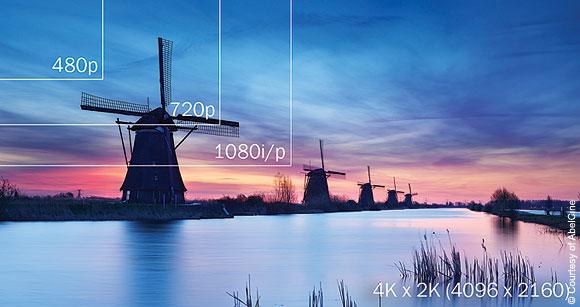
4k videos have insanely amazing picture quality that really takes the breath away. For those who have never experienced the 4K video resolution, you should check it out on YouTube or any other video sharing portal that has such videos available online. The soundtrack on such videos are also of very high quality and considering that not many 4K videos are available.

You might want to get only the soundtrack but not the entire video. It is possible to get the audio file by converting the 4K video from YouTube to MP3 using video converters. When you select a video converter, make sure that the output quality is high and check whether the tool has sufficient formats (both source and destination). The 4K videos have a horizontal resolution on the order of 4,000 pixels so the converter should be able to handle that.

Online Video Converter is an amazing tool that I came across. It offers free video conversion services with great features such as YouTube to MP3 conversion and several other formats. The processing time is quite less and the output file is of high quality. Be it video to video conversions or video to audio conversions, this tool can handle everything effortlessly.

It is pretty easy to convert the 4K video from YouTube to MP3. Just use these steps and you should be able to get the job done in no time.
Go to YouTube and search for the 4K video that you are looking for. Copy the URL and make sure you don’t leave out any part of the URL.
  •  Open a new tab and open OnlineVideoConverter.com for accessing the online tool.
  •  Select the “Extract audio or video from URL” option.
  •  Paste the URL in the respective field.
  •  Select “.mp3” as the format for your conversion
  •  Make adjustments in the advanced settings as per your preference.
  •  Click “Convert” to start the conversion process.
Once the conversion is completed, the download link would be provided. The time taken for the file to be downloaded will depend on the speed of your internet connection. So make sure that you have a high speed internet. It would only save your time. The best thing about OnlineVideoConverter is that it can be accessed from a mobile device also, so you can download the converted file on your mobile device directly. This helps to save a lot of time, especially when you are on the move.

Monday, 17 August 2015

How to Create Videos that Run Properly in PowerPoint

If you have ever used Microsoft PowerPoint for making presentations, you would have run into problems when trying to embed videos. It can be pretty frustrating, especially the problem persists and you are not able to find any effective resolution for it. The embedded video may be required to support your speech or the topic being discussed. Here is how you can create videos that run properly on PowerPoint without causing any delay in the process. 

Compatible Formats


One of the most important aspects of embedding videos is understanding the format of the video. Not all formats are compatible with the video player in PowerPoint. You need to check the video formats that are compatible with the respective version of the application. Check out the list of compatible formats below.


Whenever you face issues in video playback, always check whether the format is compatible with the application. If compatibility issue exists, then the problem can be solved easily by converting the video to the desired format using a good video converter. Nowadays, online video converters are proving to be convenient tools which offer high quality conversions in different output formats. 

Converting Videos Using Online Video Converter


OnlineVideoConverter is a great free tool for converting videos into different formats without compromising on output quality. If you want to convert an online video, then you can copy the URL and paste it in the respective field. For converting a video that you already have on your system, you need to upload the video to the tool. 

Follow these steps to convert videos using OnlineVideoConverter

  • Open a new tab and open OnlineVideoConverter.com for accessing the online tool.
  • For Converting online videos, use this method. 
  1. Select the “Extract audio or video from URL” option.
  2. Paste the URL in the respective field.
  • For Converting videos on your system, use this method. 
  1. Select the “Upload and Convert a Video” option.
  2. Upload the video file to the tool.
  • With the source file made available to the tool, you only have to made adjustments to the settings before the conversion process. 
  • Select the desired format for your video file.
  • Click “Convert” to start the conversion process.
When the conversion completes, you will get a download link. By clicking on this link, you will be able to initiate the download. The file will be downloaded directly to your device with the downloading speed being determined by the speed of your internet connection. 

Embedding the Converted Video in PowerPoint


Use the following steps to embed the video in the PowerPoint presentation. 

  • Open the slide in which you want to embed the video file. 
  • Go to the “insert” tab in the menu ribbon and select “movie”.
  • Choose the converted video file from the “downloads” folder or the folder where the file is available. 
With these steps, you should be able to embed the video in the presentation. Just make sure that if you are copying the presentation onto a pendrive, then it is important to copy the folder containing the video. Check whether the link is active after copying the files. It is possible that the video’s link would be disturbed if all the files are not copied properly and completely on to the storage media. 

Some Important Tips


You should not face a lot of problem if you are using the videos on Microsoft Windows. But for those of you who use Mac, it’s best to convert your video to MP4 format where the video and audio are H.264 and AAC encoded. If the presentation is on your mobile device, and you intend to add a video in the last minute, then it can be done easily with OnlineVideoConverter. The tool is compatible with mobile devices and can be accessed using the mobile web browser. The steps for converting the file is the same as is applicable for a web browser. Just take care to choose the file formats carefully and you should not run into any problem.