Sunday, 27 September 2015

How To Convert 3gp to MP4

http://www.freeease.net/images/products/banner_3gpvideoconverter.jpg
3gp is the simplest and most common video format that is compatible with almost all mobile phones. The quality may not be spectacular, but at least you can enjoy portable entertainment. Now that the market is flooded with good quality entertainment devices and smartphones, it has become possible to get high quality video files that are compatible with the devices. No longer do you need to watch the videos in a grainy format that is more of a hassle than convenience in today’s technologically advanced era. 

Why would anyone want to convert a 3gp video to mp4? The simplest answer to this question is that most users usually have video recordings in old mobile devices which may have come in 3gp format and in order to play it with better quality, it is better to convert the video file to mp4 format. You can get this done with the help of video converters that convert the video from one format to the other while ensuring the maximum possible video quality. 

Standalone software may be useful for converting videos but they take up a lot of time, add several unnecessary steps, and often come bundled with adware that can be pretty frustrating. Plus, you need to download the video first and then put it up for conversion. This is just a waste of time and has no justification for the amount of time taken by the tool.

Online video converters are far better than standalone counterparts and are really convenient in terms of access and usage. These video conversion tools are free to use and some of them can also be accessed on mobile devices. The quality of video conversion is pretty high and you can convert offline as well as online videos. Once the video conversion process is completed, you would be given a download link so that you get the final converted file. 

This saves time, efforts and cuts out unnecessary steps from the conversion process. I recently checked out this really cool video conversion tool called OnlineVideoConverter which had one of the fastest video conversion times that I have ever come across. It was quite easy and I got my video file converted in a jiffy. All I had to do was to upload the 3gp video to the tool and select the destination format (mp4). 

There are some advanced settings for modifying aspect ratio, resolution and section of video that needs to be converted. Unless you are a perfection fanatic, it is best to leave this section untouched. The video would be delivered as per the default settings. I had to wait for just a minute before the download link was made available. The only thing left now was to download the video. If you have a fast internet connection, then it can get the things completed faster. The more internet speed you have, the faster would be the download. 

If you found this useful, then do share your feedback in the comments section below.

How to Convert YouTube Videos to MP4 from Your Mobile


Probably the most frustrating thing about watching YouTube videos on your mobile is that you just cannot find a good enough way to convert and download the file to the mobile device directly. Everyone knows that video converters are pretty useful when it comes to downloading online videos in the format that you require. However, not all allow the tool to be used or access from the mobile device itself. 

Unless you have a dedicated video conversion app, you might not be able to convert videos in an effective manner. However, this is the case only with standalone applications. Online video converters have taken convenience to a whole new level where the tools can be accessed on the browsers, especially mobile browsers. Due to this specific feature, it has become possible to for users to immediately convert their favorite video and get it on the mobile device directly. 

Mobile compatible online video converters can be accessed on the mobile web browser by simply opening the URL in the browser and then using it just like you would use it on a desktop. While copying the URLs from YouTube, make sure you check the structure of the entire line. Since the video is being viewed on a mobile, the URL would have a modified structure which would be relevant for the mobile platform. 

This should not cause a problem in detecting the video for the conversion process. However, if you get error in reading the file from the source, then try to get the URL of the YouTube video from the search results or get it from the ‘share’ option rather than copying the URL directly. This should take care of the issue in an effective manner. 

For converting your favorite YouTube videos to MP4, simply access the online video converter, provide the URL in the specified field, select MP4 as the destination format and tap the “ convert” button to initiate the conversion process. It should be done in no time. Once the file is converted, you will be provided with a download link. Don’t worry. This is a simple download link and you won’t be redirected to any other site or get bundled malware in any form. Tap the download link to get the file. The download speed will depend on the speed of your internet connection. 

There you have it folks! This is the best way, in my opinion, to get YouTube to Mp4 conversions directly on your mobile device without using any other peripheral device or your computer. This means you can get your favorite video converted while being on the move. Just make sure that you have a good and working internet connection and you should not have any problem at all. 

If you found this useful, then do share your feedback in the comments section below.

Thursday, 17 September 2015

How to Convert Video to Sony Bravia TV Compatible Format


So you have bought the Sony Bravia TV for yourself. That’s a good choice. Have you been able to play your favorite videos on it yet? I guess you are still trying to figure out how to get your favorite videos to play on the Bravia TV. The easiest way to work out a solution for the compatibility issues is to convert the videos to the compatible format using a video converter.

According to Sony official site, Sony TVs support to play MPEG, MTS, M2TS, and MP4 formats through USB. The videos will play through USB as long as they are in the right format. These formats are available for conversion on most video converter tools. Video conversion software can be used for converting the videos, but they usually add a lot of steps to the process and take up too much time. It might not be the best option for you, especially when you are pretty excited about checking out the videos on the Sony Bravia TV. 

Online video converters not only give you the advantage of portable access, but also deliver high quality conversions completely free of charge. Plus, they do not have any bundled malware that usually comes along with the conversion software. There are some online converters like OnlineVideoConverter that can be accessed from your mobile device as well. Smartphones these days have started coming out with OTG compatibility so you can plug in your USB data stick to the device and transfer the contents directly without using a computer. This is one of the major advantages of having mobile browser compatibility. 

It takes just a few minutes for the entire process to be completed. Access the online video converter from the browser, provide the URL of the video (in case of online availability of video) or upload it from your device, select the format in which you would like to get the video and hit the ‘convert’ button. OnlineVideoConverter works exceptionally well for YouTube to MP4 as well as YouTube to MP3 conversions. So even if you want to get the audio track of your favorite video, you can do it easily. 

Depending on the size of the file and the output format selected, the file should take not more than a few minutes for conversion. If it is a very large file then don’t worry if it takes slightly longer. I am sure you can wait a little for good quality video files. Once the file is converted, the download link would be provided. The download time will be dependent on the speed of your internet connection. 

When you have the files on your USB device, simply plug it in and enjoy visual extravagance and high quality display with the Sony Bravia TV. Try it out for yourself and do share your opinions in the comments section below. 

Friday, 4 September 2015

How to Convert 4K Videos from YouTube to MP3


http://blog.abelcine.com/wp-content/uploads/2012/10/lead.jpg
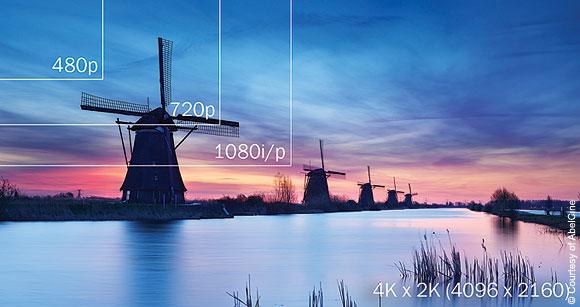
4k videos have insanely amazing picture quality that really takes the breath away. For those who have never experienced the 4K video resolution, you should check it out on YouTube or any other video sharing portal that has such videos available online. The soundtrack on such videos are also of very high quality and considering that not many 4K videos are available.

You might want to get only the soundtrack but not the entire video. It is possible to get the audio file by converting the 4K video from YouTube to MP3 using video converters. When you select a video converter, make sure that the output quality is high and check whether the tool has sufficient formats (both source and destination). The 4K videos have a horizontal resolution on the order of 4,000 pixels so the converter should be able to handle that.

Online Video Converter is an amazing tool that I came across. It offers free video conversion services with great features such as YouTube to MP3 conversion and several other formats. The processing time is quite less and the output file is of high quality. Be it video to video conversions or video to audio conversions, this tool can handle everything effortlessly.

It is pretty easy to convert the 4K video from YouTube to MP3. Just use these steps and you should be able to get the job done in no time.
Go to YouTube and search for the 4K video that you are looking for. Copy the URL and make sure you don’t leave out any part of the URL.
  •  Open a new tab and open OnlineVideoConverter.com for accessing the online tool.
  •  Select the “Extract audio or video from URL” option.
  •  Paste the URL in the respective field.
  •  Select “.mp3” as the format for your conversion
  •  Make adjustments in the advanced settings as per your preference.
  •  Click “Convert” to start the conversion process.
Once the conversion is completed, the download link would be provided. The time taken for the file to be downloaded will depend on the speed of your internet connection. So make sure that you have a high speed internet. It would only save your time. The best thing about OnlineVideoConverter is that it can be accessed from a mobile device also, so you can download the converted file on your mobile device directly. This helps to save a lot of time, especially when you are on the move.

Monday, 17 August 2015

How to Create Videos that Run Properly in PowerPoint

If you have ever used Microsoft PowerPoint for making presentations, you would have run into problems when trying to embed videos. It can be pretty frustrating, especially the problem persists and you are not able to find any effective resolution for it. The embedded video may be required to support your speech or the topic being discussed. Here is how you can create videos that run properly on PowerPoint without causing any delay in the process. 

Compatible Formats


One of the most important aspects of embedding videos is understanding the format of the video. Not all formats are compatible with the video player in PowerPoint. You need to check the video formats that are compatible with the respective version of the application. Check out the list of compatible formats below.


Whenever you face issues in video playback, always check whether the format is compatible with the application. If compatibility issue exists, then the problem can be solved easily by converting the video to the desired format using a good video converter. Nowadays, online video converters are proving to be convenient tools which offer high quality conversions in different output formats. 

Converting Videos Using Online Video Converter


OnlineVideoConverter is a great free tool for converting videos into different formats without compromising on output quality. If you want to convert an online video, then you can copy the URL and paste it in the respective field. For converting a video that you already have on your system, you need to upload the video to the tool. 

Follow these steps to convert videos using OnlineVideoConverter

  • Open a new tab and open OnlineVideoConverter.com for accessing the online tool.
  • For Converting online videos, use this method. 
  1. Select the “Extract audio or video from URL” option.
  2. Paste the URL in the respective field.
  • For Converting videos on your system, use this method. 
  1. Select the “Upload and Convert a Video” option.
  2. Upload the video file to the tool.
  • With the source file made available to the tool, you only have to made adjustments to the settings before the conversion process. 
  • Select the desired format for your video file.
  • Click “Convert” to start the conversion process.
When the conversion completes, you will get a download link. By clicking on this link, you will be able to initiate the download. The file will be downloaded directly to your device with the downloading speed being determined by the speed of your internet connection. 

Embedding the Converted Video in PowerPoint


Use the following steps to embed the video in the PowerPoint presentation. 

  • Open the slide in which you want to embed the video file. 
  • Go to the “insert” tab in the menu ribbon and select “movie”.
  • Choose the converted video file from the “downloads” folder or the folder where the file is available. 
With these steps, you should be able to embed the video in the presentation. Just make sure that if you are copying the presentation onto a pendrive, then it is important to copy the folder containing the video. Check whether the link is active after copying the files. It is possible that the video’s link would be disturbed if all the files are not copied properly and completely on to the storage media. 

Some Important Tips


You should not face a lot of problem if you are using the videos on Microsoft Windows. But for those of you who use Mac, it’s best to convert your video to MP4 format where the video and audio are H.264 and AAC encoded. If the presentation is on your mobile device, and you intend to add a video in the last minute, then it can be done easily with OnlineVideoConverter. The tool is compatible with mobile devices and can be accessed using the mobile web browser. The steps for converting the file is the same as is applicable for a web browser. Just take care to choose the file formats carefully and you should not run into any problem. 

Friday, 31 July 2015

Get Unlimited Free YouTube To MP3 Conversions with High Quality Audio Output


http://www.musicappblog.com/wp-content/uploads/2013/10/old-mic-and-green-wave.jpg
Tired of getting unsatisfactory audio conversions with ineffective video converters? Are you still searching for an online video converter that delivers high quality audio output without restricting the number of conversions or charging for different services? Your search ends here my friend! Say hello to the king of all video converters – OnlineVideoConverter.
This online video conversion tool is one of the best that I have used and the performance is exemplary. I have always had trouble finding the music that I like, and the bigger challenge was to get it in the highest possible audio quality. With OnlineVideoConverter, I don’t have to worry about the quality of the file anymore. The tool itself is pretty easy to use and even a complete novice can convert a file with it. The tool gives you a lot of audio formats to select from. These include wav, wma, m4a, flac, .ogg and aac. The default configuration of this tool allows the files to be converted with the highest quality available. YouTube to MP3 conversions using OnlineVideoConverter are a breeze and the best thing about the tool is that there is absolutely no restriction on the number of conversions that may be done. You can practically convert unlimited videos to a wide range of audio and video formats. For those who need specific audio settings, the changes may be done while configuring the conversion of the file. You can select the bitrate, format, and sections of the video to be converted to audio. With this tool, converting videos to MP3 is a piece of cake. For the average user, the difference in formats won’t bring a clear distinction in the quality level. But for those who have a keen sense of hearing, the difference in audio quality will be pretty evident. This is the fastest and easiest way to get your hands on your favourite audio. There are videos involving people who play certain compositions of their own or cover other songs in their own way. It is very likely that the audio files for such videos do not exist. In such situations, online video converters help you in getting the audio file in the highest possible quality available. Moreover, these videos are usually not copyrighted and you need not worry about infringement issues. If you feel that a particular video may be copyrighted, just drop a message to the owner for getting the permission to download the content. Who wouldn’t love their efforts being appreciated like this? The best thing about OnlineVideoConverter is that you don’t need to register to use its services. It is 100% free and no malware / spamware. It is completely safe to use. With the amount of flexibility and convenience that it provides, you would not need any other tool for satiating your love for music. 

Saturday, 25 July 2015

How to Extract Audio from Video Files for Free

http://i2.cdn.turner.com/cnn/2011/IREPORT/09/09/edit.video.bootcamp.irpt/t1larg.ancil.cnn.jpg
Online Video Converter
Extracting the audio from video files is not a difficult task. The challenge, however, lies in the retention of the desired quality in the output files. I am sure you have already asked around for suggestions. If you use software for extracting audio, then it will take up a lot of time to get the job done. Plus, you would need to install the software first. Adware and malware may come bundled with some software, so your system would run the risk of getting infected. Would you want that?
You must have heard about online video converters and tools that convert videos to MP3 as well as other formats. Some have restricted features that can be accessed after paying a nominal amount. Others require registration for extracting the audio from the video file. These can be a bit cumbersome, especially if you are running out of time or if you are not comfortable with online registrations or payment. It is better to search for a good online video converter to avoid troubles along the way.
OnlineVideoConverter is a free online video conversion tool that allows you to extract audio from video files with its YouTube to Mp3 feature. The online tool takes your video and provides the output as an audio file in the format specified by you. I have personally extracted audio from several video files and the quality of the output file has always been pretty good. You need not worry about getting malware of adware as this site is completely safe to use. Plus, you don’t need to register to use the services.
Use the following steps to extract audio from video files using OnlineVideoConverter:
  • Go to YouTube or your favorite video site, search for your video and copy its URL / link.
  • In a separate tab, open OnlineVideoConverter.com
  • Select the “Extract audio or video from URL” option and paste the URL in the video link field.
  • You may also upload the video if you have it with you. For this you would have to select the relevant option on the home page.
  • Choose “.mp3” as the format if you are not sure about the format that you need. There are various other formats such as wav, mp4 and avi which are supported.
  • After checking all the settings, click on “convert”
  • When the file is converted, a download link would be provided.
  • Simply click on the “Download” button and you're done!
When you play the file, you will notice that it has retained the quality from the original file. If you are lucky, you can get even better quality audio if a higher bitrate file is available at the source. The only thing that can cause a delay in the process is the speed of your internet connection. Apart from that, the other processes are carried out in a jiffy. One of the best features about OnlineVideoConverter is that the conversion can be initiated through a mobile device as well. For this, you would have to access the tool from a mobile browser and follow the steps mentioned above.
Feel free to share any query or suggestions in the comments section below.