Wednesday, 31 August 2016

Smart Tips to Follow before Choosing Video Background for your Website

Smart Tips to choose video background for your websites

The race to become the best and cater large number of online users is the latest trend among the websites. In today’s online world your website has to be most presentable, informative and attractive. Adding videos on the home page or video background has set the vogue which is frequently being adopted. It is a good idea to use videos as background as it is an interactive mode of communicating the information and merits of your product and services to the prospective customers. 

Sunday, 28 August 2016

Learn to Download Free: Catch the Rio 2016 Olympic Games Video and Watch Offline on iPhone, iPad & Android


Rio 2016 Olympic Games


Rio 2016 Olympic Games ended on successful note and around 10,500 athletes participated in this international battle-field of sports. If you have missed the fun and zeal of inspiring athletes, do not worry as you can download the entire series of games held at Rio and catch the fun watching the Olympic Games offline for free. 

An effective and safe video downloader would ease the work for you. The process of downloading is absolutely free; you can choose any video to download on your iPhone, iPads, android or other device. You have to download the video downloader first and only then you can move on to the further steps. 

Here are the important steps that you need to follow to watch videos offline:

·         Select the video that you want to download, go to YouTube, dailymotion or other websites where links of Rio Olympic Games are available and then enter the link of the video. You can choose the video from a device or cloud storage as well.

·         In the second step you need to select the format, there are multiple formats available like MP4, HD, 3GP and many others. Select the format in which you want to convert the video and you can customize your setting accordingly like selecting the size and picture quality.

·         Once you are fairly done with the above process, then simply click on the ‘Start’ that will begin the conversion process.

·         Once the process of conversion is completed, you can download it easily on your device.

So isn’t it too simple to download the videos and that too with an absolutely free process. It doesn’t consume much time and you can have the fun of Rio Olympics 2016 without buffering or crashing of the internet connection.  

Why to choose free download option to enjoy Rio Olympics 2016?

·         You will not miss the fun: Once you have downloaded the video, you can watch it offline. So you can invite your friends or have the fun of Olympics alone sitting peacefully in your room, or while travelling. You don’t need to worry about internet connection or slow streaming videos. You can watch every detail of the moves of athletes clearly without missing anything.

·         Cost Effective: As the download process is completely free, you don’t need to pay to watch Rio Olympic fun. You just need to have internet connection only while downloading the video and once you are done with the process, you don’t need to pay for anything.

·         Compatible with all devices: The best part of free download is the video converter is compatible with all devices. So you don’t need to worry whether your phone, tab, ipad, iphone would be able to gel with converter or not. This has made the process easy and time consuming. 

·         High Efficiency and download with video cutting and editing: You can not only download the videos for free but also you can cut, crop or edit videos.



Saturday, 20 August 2016

PC Users can Now Enjoy Free Virtual Reality 3D Conversion


It  is now possible to have 2D Video file to be converted to VR-3D (Virtual Reality 3D). Recently, iFunSoft has launched its iFun Video Converter, which is termed to be a free video converter that is Windows compatible, allowing quick conversion, supporting download of videos from those video sharing sites, VR-3D video conversion and DVD backup for the public.

Tuesday, 16 August 2016

How to Convert YouTube Video To Audio MP3

Convert YouTube videos to Audio MP3
It’s wouldn’t be wrong to say that YouTube is the indisputable library of videos submitted and collected from across the world. There are videos uploaded on YouTube that you can’t even imagine to have been shot, leave alone being available for the world to watch it online. YouTube has introduced us an unexplored territory which offers us huge dose of knowledge and entertainment together. Most of the YouTube videos are free for the greater part of the world; one can watch them anytime, any day comfortably on their laptops, mobiles or tablets. The best part about this online video library is that equal focus is paid to the audio and video quality. Even some video are available to watch in 720p, 1080p and HD quality.

There is a lot of visual content which isn’t available in audio form. Some of this content can also be used for educational purposes and entertainment purposes, but people always find it costly to play videos all the time and therefore, play it in audio form. In case if you are also wondering how you can convert YouTube videos to Audio MP3, you may follow the instructions given below. However, before that you must realize that you can convert videos to audio online as well as by downloading a few softwares dedicated to this specific purpose. Now let’s go through these instructions:

Step 1

Google search the online software which is hassle-free to operate and can convert YouTube video into audio within a few seconds.

Step 2

A lot of search results will open; you can try anyone of them from the top 10 results. All of them have almost similar steps to convert YouTube video to MP3 audio.

Step 3

Copy the link of the YouTube video that you wish to convert to the online converter that you have opened. Once you have submitted the link, a message will be shown asking you to either register to that website or simply enter a captcha to ensure a person is using the services of the converter. It is not necessary that this step will appear. Sometimes you can convert the video file into audio track without registering on the website.

Step 4

Within a few seconds of submitting the link of the video file, conversion will start and you will asked the various audio types that you may want. The options to download different audio formats will be .mp3, .m4a, .aac, .ogg, .wma, .flac, and .wav. Choose MP3 Format to download your audio.

Step 5

You can download the audio MP3 in 128 kBit/s and more. Before saving the audio in your preferred folder, you will have to wait for approximately 3 to 4 minutes per video.

A lot of YouTube video to audio converters are compatible with your Mac, a Linux PC, Windows or even an iPhone. Some converters might have some limits on the number of conversions and downloads in a single day.

Monday, 25 July 2016

How To Save YouTube Videos In Your Android

Are You a College student Or a frequent traveler, who can't watch Television all the time. You know
what is the relief? You have YouTube to watch all your favorite shows and videos, but the need to be in range of a WiFi can become a Pain.
And using a Mobile data Connection, can put you over your Pocket Money.
What is the Solution then? Well... JUST SAVE IT!
Yes, with a few simple ways you can save your videos in any Android Phone to watch them offline.

Here are some ways to download your best choice

Tubemate

Tubemate is the most common app, that you can find in almost every android phone. Some steps and your video will be in your phone, But for that first you have to install Tubemate. After that search your favorite video and click the GREEN DOWNLOAD ARROW at the bottom of the screen.
It has different resolution options that you can select at the time of downloading.

Tubemate

P.S. You will not find tubemate at Play Store


YouTube Downloader

Most easy and simple app to download tons of videos not only from YouTube, but from other sites
too. All you need is this app on your phone. After, Search your Video on YouTube (not downloader) and at the bottom of your video, you will find a Share Icon. Press it and select YouTube Downloader from the dropdown list. At last Click OK and enjoy your video anywhere, anytime.

YouTube Downloader

P.S. Not available on Play Store

GetTube

Lost Connection in between your downloading? No worries! The downloader will wait for connection and will resume the download without any user command. You can download in any quality and can pause or resume any time. It offers the fastest speed possible.

GetTube

SnapTube

Want to download a video in HD or mp3 format? Install SnapTube then! It will take just a fraction of
storage in your RAM. If you don't want videos from YouTube, you can download from the other side
too.

Snaptube

Videoder

It is being used by over 20 million people around the world. You can download any video in just 2
steps, Search your video and download it.
You can get your video in different formats as well as in resolution.

Videoder

Mozilla Firefox (least known)

Yes! You can download YouTube through your Browser too, but remember it should only be Mozilla.
Let me explain you how?
Open YouTube On Mozilla
Change Mobile Version to Desktop Version
Search your Video and play it.
Long press on Video and there you will find a Jackpot, 'SAVE VIDEO' option.

Mozila Firefox

P.S. It doesn't work with Chrome

Still Unsatisfied? I have a much better for your favorites. No need to install any app or Mozilla in your Android.
You can get your hands on any video in seconds. Simply go to online video converter and get your
video in any format of your choice, mp3 or mp4.

Wednesday, 29 June 2016

Fastest Way to Convert YouTube Videos to MP4

Convert YouTube Videos to MP4
YouTube is the most popular website for sharing videos. This site allows its users to upload their video content, view the content already aired on site and share the posted videos. For enjoying the features offered by YouTube, its user doesn’t need to register them. They can surf over YouTube without registering themselves. This site allows easy registration through synchronized Google account. Individuals are the main contributor in this website, moat of the uploaded video are home-made and created by self. Many official channels share their content on YouTube too; they gain audience and earn profits from it.

These days video sharing means YouTube. The type and language of the video content shared on the site has no boundaries. An individual sitting in any remote area of the world can share their content, and their audience can be anyone from across the globe. Not only individual but any media sectors, or any music company can share their video through their official accounts. Creating playlist of your taste and going viewing them multiple times is like a child’s play. You can use YouTube for many purposes like watching your favorite football goals, going through an educational video content, or listen to your favorite music album while watching the graphical features it has to offer. 

Although YouTube tries its best to please its users by offering best services for online platform, but many time its users feel the need of taking video offline and share the content to their friends, family or other individual who shares common interest. At that time, MP4 convertor plays a crucial role. By using any software which helps you go from YouTube to MP4. There are many YouTube to MP4 convertor available in the market, but users end up hating most of them because of the heap of time they take to convert from YouTube to MP4. Don’t worry you have landed on the page which offers the fastest and simplest way to convert YouTube videos to MP4 format.

1.Copy & Paste the link of the desired video: 

Open the video you want to convert in any browser or in the YouTube app. Go to address bar and copy the destination link of the video. Open this website and paste the link in given textbox.


2.Select MP4 (or any other) format: 

After pasting the source link, you can see a list naming every format to which you can convert your content video. Select MP4 (or any other) from the list.


3.Start the process of conversion:


Select the start button, and desired video will start converting into MP4 format.


4.Download after finished: 


After your screen shows that the video has been converted. Download the video and that’s it! Now you can watch the video innumerous times without spending any data, and you share the video to your friends, colleagues, family, neighbors or anyone else.


Using this website, source video can be converted in many available formats such as mp3, mkv etc.

Thursday, 22 October 2015

What Makes OnlineVideoConverter Better Than Other Video Converters

Online Video Converter

Have you checked out OnlineVideoConverter yet? I am sure that you must have come across this amazing video conversion tool while searching for video converters online. This particular tool is better than other converters that are available. You must have heard several online video converters claim about their superior performance and capabilities, but OnlineVideoConverter proves it worth by delivering superior convenience, easy access and high quality video conversions that will wow you any day. 

What makes OnlineVideoConverter better than other video converters? Let’s find out. 

100% Free to Use


Unlike some video converters, the OnlineVideoConverter is 100% free which means there are no upfront costs or hidden charges. This makes it a really good option for those who need to convert videos frequently. Some converters often have hidden charges which might not be evident initially, but they tend to surface later. With OnlineVideoConverter, you will never have to pay anything to use it. It is completely free. 

No Registration Required


There are some video converters that require users to register themselves before they can start using the services. OnlineVideoConverter requires no such thing to be done by the users. This also assures users that their contact details won’t be used in any manner, especially for spamming. The absence of registration is one of the benefits that makes this tool really easy to use. 

Wide Range of Audio-Video Formats Supported


OnlineVideoConverter supports a wide range of audio and video formats which makes the tool compatible with several media file types. Plus, the presence of so many formats makes it really convenient to convert videos without worrying about compatibility issues with the converter. 

Compatible with Mobile Devices


This online video converter can be accessed from mobile devices via mobile browser. You no longer need to use a PC for downloading and / or converting the video file before transferring it to your mobile device. It can be done directly, thereby saving time and efforts. This feature also allows users to convert files on the go. When you are running late for a presentation or you need converted files immediately, OnlineVideoConverter is the best video conversion tool that you can get. 

One of the Fastest Conversion 


OnlineVideoConverter has arguably one of the fastest conversion speed available today. The process takes less than a minute in most cases and you get the download link in a jiffy. The actual conversion time depends on the length of the file, the quality of the video and other specifications. But if you compare the tool with others, OnlineVideoConverter still manages to deliver blazing fast conversions. 

High Quality Video / Audio Conversions


The actual quality of the audio / video file depends on the source format and the destination format. But even then, the tool offers high quality output which is better than most other video converters available today. You can check out the quality yourself by testing any video file here. 

Easy to Use Interface


So what if you have never used an online video converter before? This tool has an easy to use interface that basically involves very less steps to convert the file in the format that you need. The options are laid out clearly so that the user is able to understand them irrespective of the platform from which the tool has been accessed. This means that you get a really effective interface when you access the tool from the desktop or a mobile device. 

Completely Safe


Most users have concerns about using online video conversion tools, especially the ones that offer free services, due to the possibility of malware being shared along with the file. OnlineVideoConverter is 100% safe to use and has been running free from bugs or malware ever since it started.

Still not convinced about OnlineVideoConverter? Go ahead and try it out here.

Friday, 9 October 2015

Use YouTube to MP3 For Getting Audio Tracks of Your Live Performances


Did you know that YouTube to MP3 converters can actually turn out to be a useful tool for budding musicians, singers and other performing artists? When you perform live and get the video footage of the performance, you can easily extract the audio without having to ask for a separate audio recording. This can easily be done by accessing the video on YouTube and using the online video converter to get the job done. 

Converting videos, especially YouTube videos, to MP3 without the required permissions is unethical and should not be indulged in. However, if the artist wishes to let others download the audio of his or her live performance, then a YouTube to MP3 converter is the best tool for the job. This approach is really good for upcoming artists who want to reach out to fans but do not have the required funds or financial strength to get these services. 

Artists can share the URL of their video and ask fans to use it to get the audio track with the help of a good video converter. YouTube is the most popular video sharing platform in the world today and several artists such as Justin Bieber got their shot at success by uploading videos on this platform. As a performing artist, you can record a video of your act or even get someone to record a live performance. If the audio quality is good, then it would be a good idea to extract the audio from the video for free. 

For extracting audio from your YouTube video, simply copy the video’s URL, paste it in the online video converter’s field, select the destination format (MP3 in this case), make additional adjustments if required and hit the ‘convert’ button to initiate the conversion process. All that remains is to download the file using the link provided after the conversion has been completed. 

I recommend using OnlineVideoConverter. This video converter is one of the fastest that is available online. It is completely free to use and can be accessed from mobile devices. This converter assures high output quality and has a wide range of formats in which the files can be converted. 
Why don’t you try it out and share your experience with us. We would love to hear about it. 

Sunday, 27 September 2015

How To Convert 3gp to MP4

http://www.freeease.net/images/products/banner_3gpvideoconverter.jpg
3gp is the simplest and most common video format that is compatible with almost all mobile phones. The quality may not be spectacular, but at least you can enjoy portable entertainment. Now that the market is flooded with good quality entertainment devices and smartphones, it has become possible to get high quality video files that are compatible with the devices. No longer do you need to watch the videos in a grainy format that is more of a hassle than convenience in today’s technologically advanced era. 

Why would anyone want to convert a 3gp video to mp4? The simplest answer to this question is that most users usually have video recordings in old mobile devices which may have come in 3gp format and in order to play it with better quality, it is better to convert the video file to mp4 format. You can get this done with the help of video converters that convert the video from one format to the other while ensuring the maximum possible video quality. 

Standalone software may be useful for converting videos but they take up a lot of time, add several unnecessary steps, and often come bundled with adware that can be pretty frustrating. Plus, you need to download the video first and then put it up for conversion. This is just a waste of time and has no justification for the amount of time taken by the tool.

Online video converters are far better than standalone counterparts and are really convenient in terms of access and usage. These video conversion tools are free to use and some of them can also be accessed on mobile devices. The quality of video conversion is pretty high and you can convert offline as well as online videos. Once the video conversion process is completed, you would be given a download link so that you get the final converted file. 

This saves time, efforts and cuts out unnecessary steps from the conversion process. I recently checked out this really cool video conversion tool called OnlineVideoConverter which had one of the fastest video conversion times that I have ever come across. It was quite easy and I got my video file converted in a jiffy. All I had to do was to upload the 3gp video to the tool and select the destination format (mp4). 

There are some advanced settings for modifying aspect ratio, resolution and section of video that needs to be converted. Unless you are a perfection fanatic, it is best to leave this section untouched. The video would be delivered as per the default settings. I had to wait for just a minute before the download link was made available. The only thing left now was to download the video. If you have a fast internet connection, then it can get the things completed faster. The more internet speed you have, the faster would be the download. 

If you found this useful, then do share your feedback in the comments section below.

How to Convert YouTube Videos to MP4 from Your Mobile


Probably the most frustrating thing about watching YouTube videos on your mobile is that you just cannot find a good enough way to convert and download the file to the mobile device directly. Everyone knows that video converters are pretty useful when it comes to downloading online videos in the format that you require. However, not all allow the tool to be used or access from the mobile device itself. 

Unless you have a dedicated video conversion app, you might not be able to convert videos in an effective manner. However, this is the case only with standalone applications. Online video converters have taken convenience to a whole new level where the tools can be accessed on the browsers, especially mobile browsers. Due to this specific feature, it has become possible to for users to immediately convert their favorite video and get it on the mobile device directly. 

Mobile compatible online video converters can be accessed on the mobile web browser by simply opening the URL in the browser and then using it just like you would use it on a desktop. While copying the URLs from YouTube, make sure you check the structure of the entire line. Since the video is being viewed on a mobile, the URL would have a modified structure which would be relevant for the mobile platform. 

This should not cause a problem in detecting the video for the conversion process. However, if you get error in reading the file from the source, then try to get the URL of the YouTube video from the search results or get it from the ‘share’ option rather than copying the URL directly. This should take care of the issue in an effective manner. 

For converting your favorite YouTube videos to MP4, simply access the online video converter, provide the URL in the specified field, select MP4 as the destination format and tap the “ convert” button to initiate the conversion process. It should be done in no time. Once the file is converted, you will be provided with a download link. Don’t worry. This is a simple download link and you won’t be redirected to any other site or get bundled malware in any form. Tap the download link to get the file. The download speed will depend on the speed of your internet connection. 

There you have it folks! This is the best way, in my opinion, to get YouTube to Mp4 conversions directly on your mobile device without using any other peripheral device or your computer. This means you can get your favorite video converted while being on the move. Just make sure that you have a good and working internet connection and you should not have any problem at all. 

If you found this useful, then do share your feedback in the comments section below.

Thursday, 17 September 2015

How to Convert Video to Sony Bravia TV Compatible Format


So you have bought the Sony Bravia TV for yourself. That’s a good choice. Have you been able to play your favorite videos on it yet? I guess you are still trying to figure out how to get your favorite videos to play on the Bravia TV. The easiest way to work out a solution for the compatibility issues is to convert the videos to the compatible format using a video converter.

According to Sony official site, Sony TVs support to play MPEG, MTS, M2TS, and MP4 formats through USB. The videos will play through USB as long as they are in the right format. These formats are available for conversion on most video converter tools. Video conversion software can be used for converting the videos, but they usually add a lot of steps to the process and take up too much time. It might not be the best option for you, especially when you are pretty excited about checking out the videos on the Sony Bravia TV. 

Online video converters not only give you the advantage of portable access, but also deliver high quality conversions completely free of charge. Plus, they do not have any bundled malware that usually comes along with the conversion software. There are some online converters like OnlineVideoConverter that can be accessed from your mobile device as well. Smartphones these days have started coming out with OTG compatibility so you can plug in your USB data stick to the device and transfer the contents directly without using a computer. This is one of the major advantages of having mobile browser compatibility. 

It takes just a few minutes for the entire process to be completed. Access the online video converter from the browser, provide the URL of the video (in case of online availability of video) or upload it from your device, select the format in which you would like to get the video and hit the ‘convert’ button. OnlineVideoConverter works exceptionally well for YouTube to MP4 as well as YouTube to MP3 conversions. So even if you want to get the audio track of your favorite video, you can do it easily. 

Depending on the size of the file and the output format selected, the file should take not more than a few minutes for conversion. If it is a very large file then don’t worry if it takes slightly longer. I am sure you can wait a little for good quality video files. Once the file is converted, the download link would be provided. The download time will be dependent on the speed of your internet connection. 

When you have the files on your USB device, simply plug it in and enjoy visual extravagance and high quality display with the Sony Bravia TV. Try it out for yourself and do share your opinions in the comments section below. 

Friday, 4 September 2015

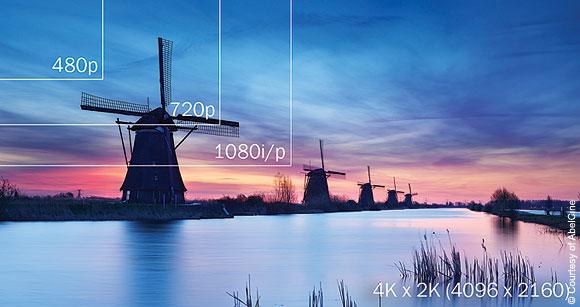
How to Convert 4K Videos from YouTube to MP3


http://blog.abelcine.com/wp-content/uploads/2012/10/lead.jpg
4k videos have insanely amazing picture quality that really takes the breath away. For those who have never experienced the 4K video resolution, you should check it out on YouTube or any other video sharing portal that has such videos available online. The soundtrack on such videos are also of very high quality and considering that not many 4K videos are available.

You might want to get only the soundtrack but not the entire video. It is possible to get the audio file by converting the 4K video from YouTube to MP3 using video converters. When you select a video converter, make sure that the output quality is high and check whether the tool has sufficient formats (both source and destination). The 4K videos have a horizontal resolution on the order of 4,000 pixels so the converter should be able to handle that.

Online Video Converter is an amazing tool that I came across. It offers free video conversion services with great features such as YouTube to MP3 conversion and several other formats. The processing time is quite less and the output file is of high quality. Be it video to video conversions or video to audio conversions, this tool can handle everything effortlessly.

It is pretty easy to convert the 4K video from YouTube to MP3. Just use these steps and you should be able to get the job done in no time.
Go to YouTube and search for the 4K video that you are looking for. Copy the URL and make sure you don’t leave out any part of the URL.
  •  Open a new tab and open OnlineVideoConverter.com for accessing the online tool.
  •  Select the “Extract audio or video from URL” option.
  •  Paste the URL in the respective field.
  •  Select “.mp3” as the format for your conversion
  •  Make adjustments in the advanced settings as per your preference.
  •  Click “Convert” to start the conversion process.
Once the conversion is completed, the download link would be provided. The time taken for the file to be downloaded will depend on the speed of your internet connection. So make sure that you have a high speed internet. It would only save your time. The best thing about OnlineVideoConverter is that it can be accessed from a mobile device also, so you can download the converted file on your mobile device directly. This helps to save a lot of time, especially when you are on the move.

Monday, 17 August 2015

How to Create Videos that Run Properly in PowerPoint

If you have ever used Microsoft PowerPoint for making presentations, you would have run into problems when trying to embed videos. It can be pretty frustrating, especially the problem persists and you are not able to find any effective resolution for it. The embedded video may be required to support your speech or the topic being discussed. Here is how you can create videos that run properly on PowerPoint without causing any delay in the process. 

Compatible Formats


One of the most important aspects of embedding videos is understanding the format of the video. Not all formats are compatible with the video player in PowerPoint. You need to check the video formats that are compatible with the respective version of the application. Check out the list of compatible formats below.


Whenever you face issues in video playback, always check whether the format is compatible with the application. If compatibility issue exists, then the problem can be solved easily by converting the video to the desired format using a good video converter. Nowadays, online video converters are proving to be convenient tools which offer high quality conversions in different output formats. 

Converting Videos Using Online Video Converter


OnlineVideoConverter is a great free tool for converting videos into different formats without compromising on output quality. If you want to convert an online video, then you can copy the URL and paste it in the respective field. For converting a video that you already have on your system, you need to upload the video to the tool. 

Follow these steps to convert videos using OnlineVideoConverter

  • Open a new tab and open OnlineVideoConverter.com for accessing the online tool.
  • For Converting online videos, use this method. 
  1. Select the “Extract audio or video from URL” option.
  2. Paste the URL in the respective field.
  • For Converting videos on your system, use this method. 
  1. Select the “Upload and Convert a Video” option.
  2. Upload the video file to the tool.
  • With the source file made available to the tool, you only have to made adjustments to the settings before the conversion process. 
  • Select the desired format for your video file.
  • Click “Convert” to start the conversion process.
When the conversion completes, you will get a download link. By clicking on this link, you will be able to initiate the download. The file will be downloaded directly to your device with the downloading speed being determined by the speed of your internet connection. 

Embedding the Converted Video in PowerPoint


Use the following steps to embed the video in the PowerPoint presentation. 

  • Open the slide in which you want to embed the video file. 
  • Go to the “insert” tab in the menu ribbon and select “movie”.
  • Choose the converted video file from the “downloads” folder or the folder where the file is available. 
With these steps, you should be able to embed the video in the presentation. Just make sure that if you are copying the presentation onto a pendrive, then it is important to copy the folder containing the video. Check whether the link is active after copying the files. It is possible that the video’s link would be disturbed if all the files are not copied properly and completely on to the storage media. 

Some Important Tips


You should not face a lot of problem if you are using the videos on Microsoft Windows. But for those of you who use Mac, it’s best to convert your video to MP4 format where the video and audio are H.264 and AAC encoded. If the presentation is on your mobile device, and you intend to add a video in the last minute, then it can be done easily with OnlineVideoConverter. The tool is compatible with mobile devices and can be accessed using the mobile web browser. The steps for converting the file is the same as is applicable for a web browser. Just take care to choose the file formats carefully and you should not run into any problem. 

Friday, 31 July 2015

Get Unlimited Free YouTube To MP3 Conversions with High Quality Audio Output


http://www.musicappblog.com/wp-content/uploads/2013/10/old-mic-and-green-wave.jpg
Tired of getting unsatisfactory audio conversions with ineffective video converters? Are you still searching for an online video converter that delivers high quality audio output without restricting the number of conversions or charging for different services? Your search ends here my friend! Say hello to the king of all video converters – OnlineVideoConverter.
This online video conversion tool is one of the best that I have used and the performance is exemplary. I have always had trouble finding the music that I like, and the bigger challenge was to get it in the highest possible audio quality. With OnlineVideoConverter, I don’t have to worry about the quality of the file anymore. The tool itself is pretty easy to use and even a complete novice can convert a file with it. The tool gives you a lot of audio formats to select from. These include wav, wma, m4a, flac, .ogg and aac. The default configuration of this tool allows the files to be converted with the highest quality available. YouTube to MP3 conversions using OnlineVideoConverter are a breeze and the best thing about the tool is that there is absolutely no restriction on the number of conversions that may be done. You can practically convert unlimited videos to a wide range of audio and video formats. For those who need specific audio settings, the changes may be done while configuring the conversion of the file. You can select the bitrate, format, and sections of the video to be converted to audio. With this tool, converting videos to MP3 is a piece of cake. For the average user, the difference in formats won’t bring a clear distinction in the quality level. But for those who have a keen sense of hearing, the difference in audio quality will be pretty evident. This is the fastest and easiest way to get your hands on your favourite audio. There are videos involving people who play certain compositions of their own or cover other songs in their own way. It is very likely that the audio files for such videos do not exist. In such situations, online video converters help you in getting the audio file in the highest possible quality available. Moreover, these videos are usually not copyrighted and you need not worry about infringement issues. If you feel that a particular video may be copyrighted, just drop a message to the owner for getting the permission to download the content. Who wouldn’t love their efforts being appreciated like this? The best thing about OnlineVideoConverter is that you don’t need to register to use its services. It is 100% free and no malware / spamware. It is completely safe to use. With the amount of flexibility and convenience that it provides, you would not need any other tool for satiating your love for music. 

Saturday, 25 July 2015

How to Extract Audio from Video Files for Free

http://i2.cdn.turner.com/cnn/2011/IREPORT/09/09/edit.video.bootcamp.irpt/t1larg.ancil.cnn.jpg
Online Video Converter
Extracting the audio from video files is not a difficult task. The challenge, however, lies in the retention of the desired quality in the output files. I am sure you have already asked around for suggestions. If you use software for extracting audio, then it will take up a lot of time to get the job done. Plus, you would need to install the software first. Adware and malware may come bundled with some software, so your system would run the risk of getting infected. Would you want that?
You must have heard about online video converters and tools that convert videos to MP3 as well as other formats. Some have restricted features that can be accessed after paying a nominal amount. Others require registration for extracting the audio from the video file. These can be a bit cumbersome, especially if you are running out of time or if you are not comfortable with online registrations or payment. It is better to search for a good online video converter to avoid troubles along the way.
OnlineVideoConverter is a free online video conversion tool that allows you to extract audio from video files with its YouTube to Mp3 feature. The online tool takes your video and provides the output as an audio file in the format specified by you. I have personally extracted audio from several video files and the quality of the output file has always been pretty good. You need not worry about getting malware of adware as this site is completely safe to use. Plus, you don’t need to register to use the services.
Use the following steps to extract audio from video files using OnlineVideoConverter:
  • Go to YouTube or your favorite video site, search for your video and copy its URL / link.
  • In a separate tab, open OnlineVideoConverter.com
  • Select the “Extract audio or video from URL” option and paste the URL in the video link field.
  • You may also upload the video if you have it with you. For this you would have to select the relevant option on the home page.
  • Choose “.mp3” as the format if you are not sure about the format that you need. There are various other formats such as wav, mp4 and avi which are supported.
  • After checking all the settings, click on “convert”
  • When the file is converted, a download link would be provided.
  • Simply click on the “Download” button and you're done!
When you play the file, you will notice that it has retained the quality from the original file. If you are lucky, you can get even better quality audio if a higher bitrate file is available at the source. The only thing that can cause a delay in the process is the speed of your internet connection. Apart from that, the other processes are carried out in a jiffy. One of the best features about OnlineVideoConverter is that the conversion can be initiated through a mobile device as well. For this, you would have to access the tool from a mobile browser and follow the steps mentioned above.
Feel free to share any query or suggestions in the comments section below.